User Management
User Management allows administrators to create and manage local RhythmX accounts and view Active Directory synchronized users. Access it from the Security Control Center by clicking Manage Users on the User Management widget.
Local Users
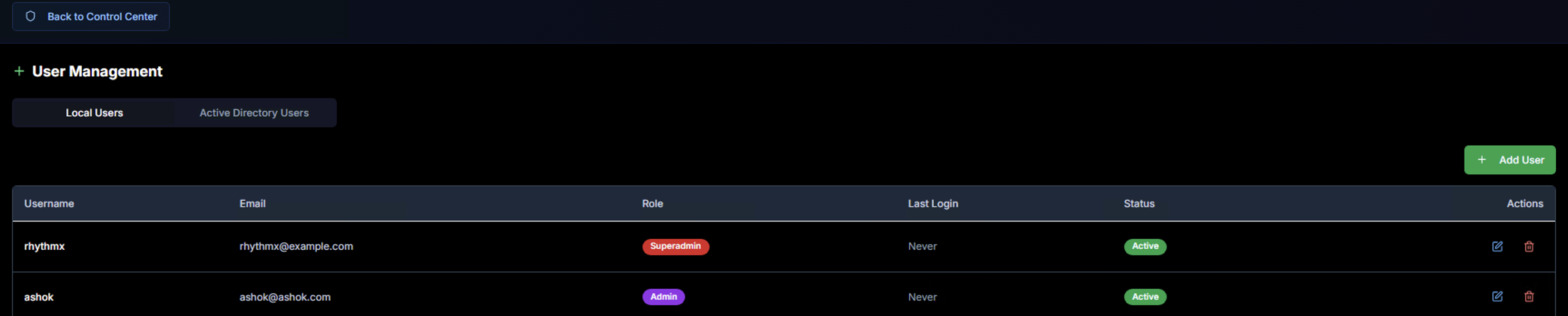
The Local Users tab displays all locally created RhythmX accounts:
| Column | Description |
|---|---|
| Username | The login username for the account |
| Associated email address | |
| Role | The user's permission level — determines what the user can access |
| Last Login | When the user last logged in |
| Status | Active or Inactive |
| Actions | Edit or delete the user account |
Roles
| Role | Permissions |
|---|---|
| Superadmin | Full access to all features including system settings, user management, and all analyst capabilities |
| Admin | Access to system configuration, rule management, false positive management, and all analyst capabilities |
| Analyst | Access to Security Dashboard, investigation workflows, threat hunting, case management, and reporting |
Adding a New User
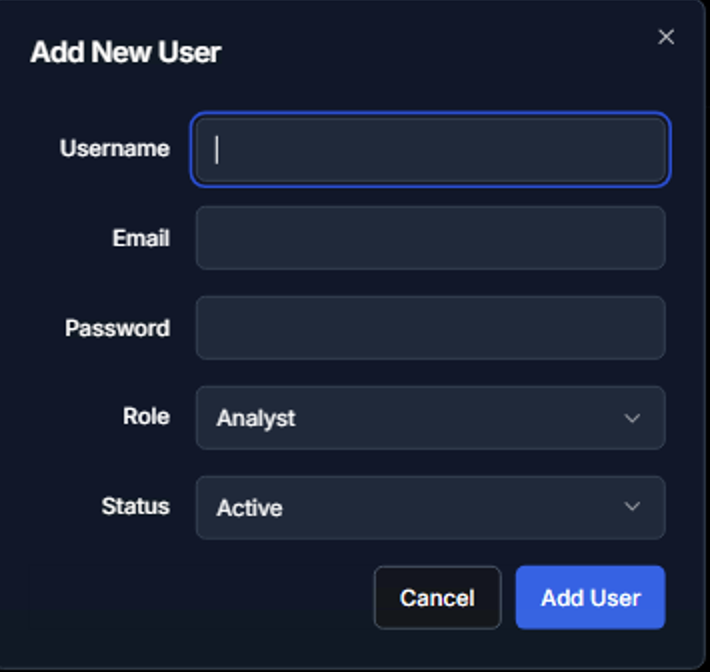
Click + Add User to create a new local account:
| Field | Description |
|---|---|
| Username | Unique login name for the new account |
| User's email address for notifications and account recovery | |
| Password | Initial password — the user should change this on first login |
| Role | Select the appropriate permission level (Analyst, Admin, or Superadmin) |
| Status | Set to Active to enable immediate login, or Inactive to create the account without granting access |
Click Add User to create the account, or Cancel to discard.
Active Directory Users
The Active Directory Users tab displays users synchronized from your LDAP/AD directory (configured in System Settings). These users authenticate with their domain credentials and do not require local passwords.
AD-synced users are automatically enriched with organizational data (title, department, group memberships) which is used throughout RhythmX for entity context during investigations.