Rule Center
The Rule Center is the central hub for managing all Sigma detection rules in RhythmX. It provides visibility into every active rule across all log pipelines and allows admins to upload custom rules.
The Rule Center is organized into built-in rule tabs and custom rule tabs for each log type.
Built-in Rules
Windows Rules
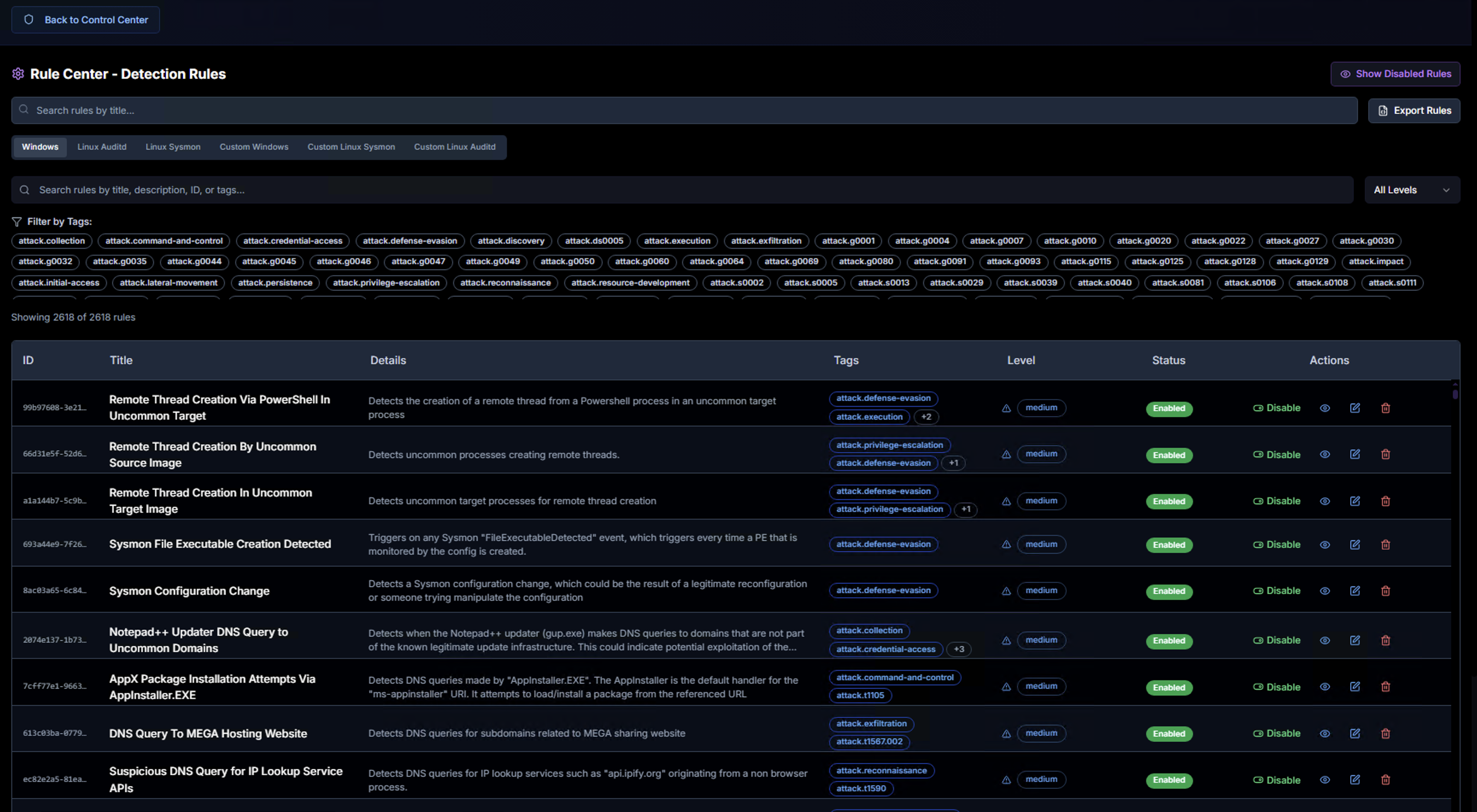
The Windows tab displays all built-in Sigma rules applied to the Windows Event Log pipeline (Port 5514). Each rule shows:
- Title — Sigma rule name
- Details — Description of what the rule detects
- Tags — MITRE ATT&CK tactics and techniques (filterable)
- Level — Severity: informational, low, medium, high, critical
- Status — Enable or disable individual rules
- Actions — View rule details or edit status
Use the search bar to find rules by title, description, ID, or tags. Filter by MITRE ATT&CK tags using the tag bar, or filter by severity level using the level dropdown.
Linux Sysmon Rules
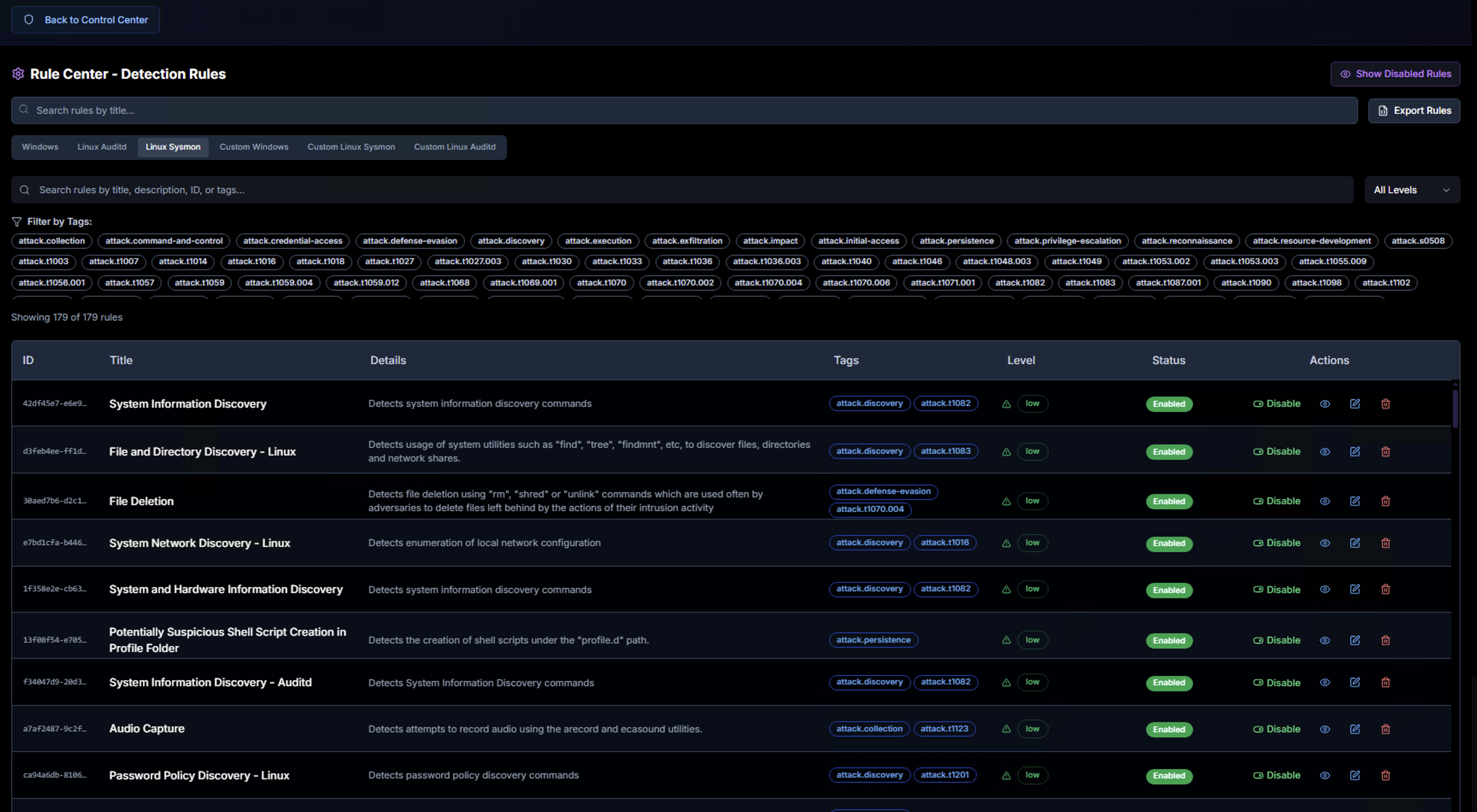
The Linux Sysmon tab displays all Sigma rules applied to the Linux Sysmon pipeline (Port 5515). These rules cover process creation, network connections, file modifications, and other Sysmon for Linux telemetry.
Linux Auditd Rules
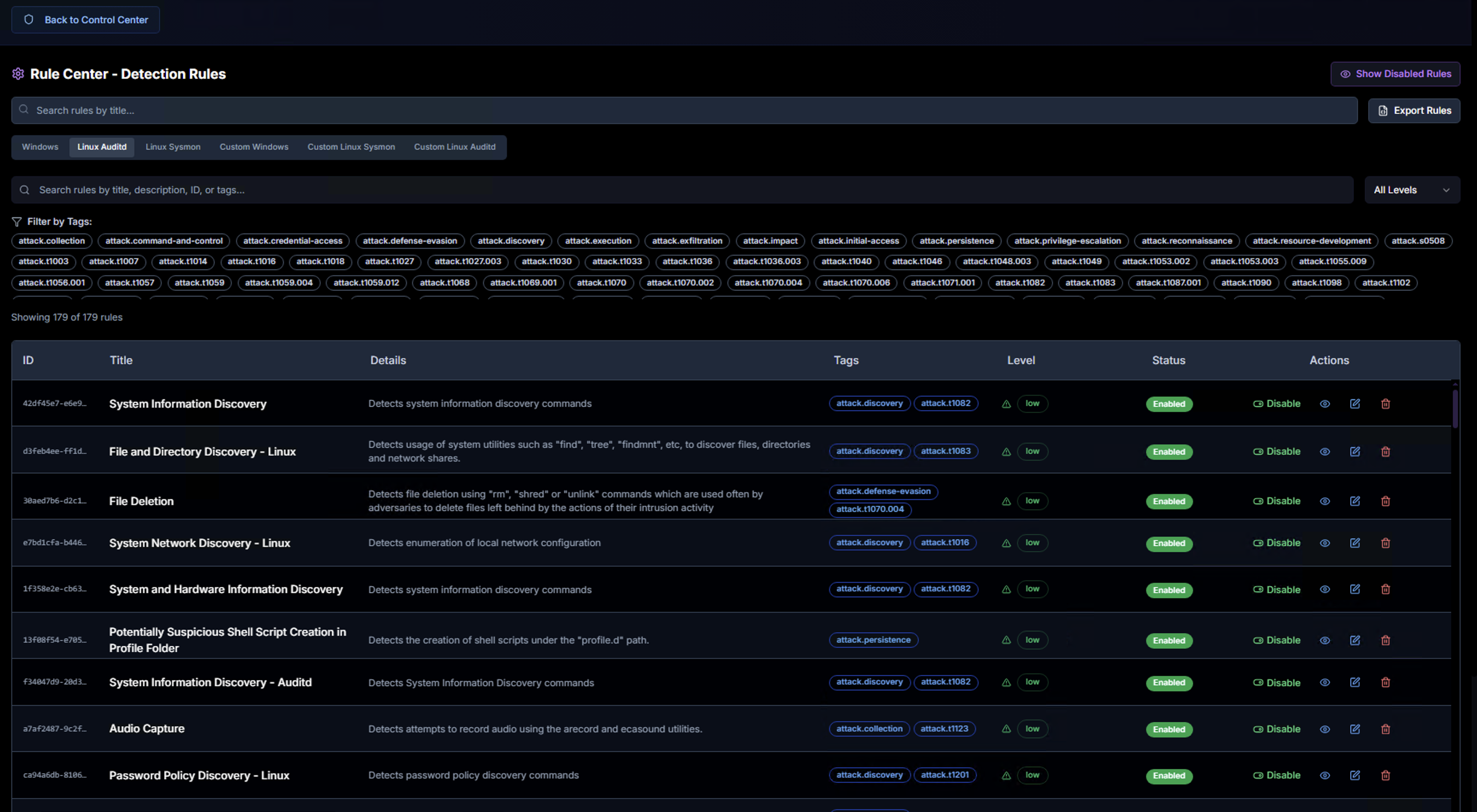
The Linux Auditd tab displays all Sigma rules applied to the Linux Auditd pipeline (Port 5516). These rules cover syscall-level detections, file access monitoring, privilege escalation, and authentication events.
Custom Rules
RhythmX supports uploading custom Sigma rules as .yml files for each log type. Custom rules are managed through dedicated tabs.
Custom Windows
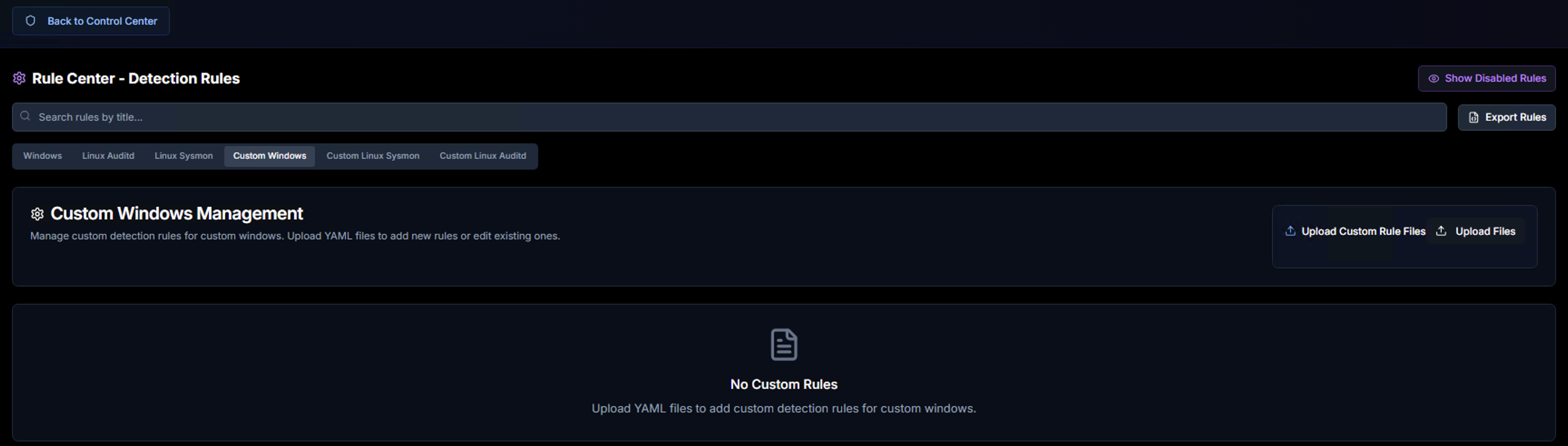
Upload custom Sigma rules for the Windows pipeline. Click Upload Custom Rule Files to add individual .yml files, or use Upload Files to add multiple rules at once.
Custom rules follow the standard Sigma rule specification and are automatically applied on the next detection cycle.
Custom Linux Sysmon
Upload custom Sigma rules for the Linux Sysmon pipeline. Same upload workflow as Custom Windows.
Custom Linux Auditd
Upload custom Sigma rules for the Linux Auditd pipeline. Same upload workflow as Custom Windows.
Managing Rules
| Action | How |
|---|---|
| Search rules | Use the search bar to filter by title, description, ID, or tags |
| Filter by MITRE tags | Click any tag in the tag bar to filter the rule list |
| Filter by severity | Use the level dropdown to show only rules of a specific severity |
| Enable / Disable a rule | Toggle the status switch in the Actions column |
| View disabled rules | Click Show Disabled Rules to see rules that have been turned off |
| Export rules | Click Export Rules to download the current rule set |
| Upload custom rules | Navigate to a Custom tab and click Upload Custom Rule Files |